Flatbed digital cutting machines have become standard equipment in packaging plants, printing workshops, display production lines, textile processing facilities, and composite-material manufacturing. Compared with traditional die-cutting or manual trimming, flatbed cutters deliver higher precision, faster changeovers, and the flexibility to process diverse materials—from corrugated board and honeycomb panels to leather, fabric, acrylic sheets, and multi-layer foam.
However, frequent machine operation daily inevitably leads to occasional malfunctions. Many issues stem not from inherent equipment flaws, but from environmental factors, material characteristics, improper parameter settings, or inadequate routine maintenance. To help factories minimize downtime and enhance cutting consistency, I will draw upon real-world industry experience to provide an in-depth troubleshooting guide for common problems at the “field level.”
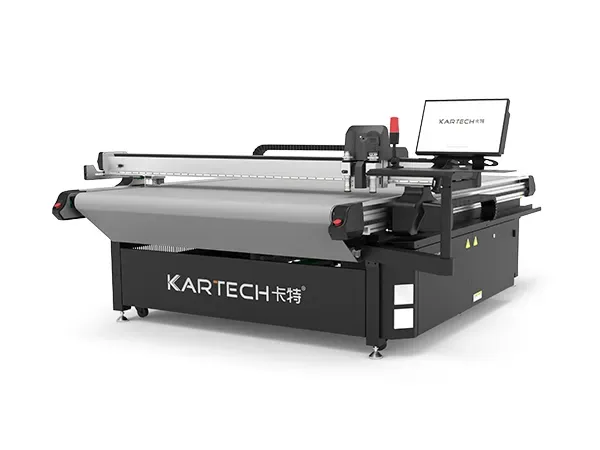
(When the Control Panel Stays Dark or the System Does Not Respond)**
Common Cause Identification
Factory voltage instability or insufficient instantaneous current
Emergency stop switch accidentally activated
Main power cord loose, aged, or plug contact failure
Control panel fuse blown
Control system locked due to abnormal data
Practical Troubleshooting Steps
Verify power supply meets rated requirements
Most flatbed cutters require stable three-phase power. Simultaneous startup of other large factory equipment may cause momentary voltage fluctuations.
Inspect emergency stop button
This is the most common operational oversight in workshops. Press the knob and rotate to release.
Inspect main power cord and distribution box
If the plug shows signs of overheating, oxidation, or scorching, it indicates poor contact and requires replacement.
Restart the controller or host software
Some systems automatically trigger “protective shutdown” during data errors.
Inspect fuses and switching power supplies
If repeated blowouts occur, have an engineer test the mainboard load.
Recommendation:
Equipping the machine with a voltage stabilizer extends the lifespan of drivers and control boards.
(When Cuts Look Jagged, Uneven, or Misaligned)
Potential Causes
Blade wear, misaligned installation, or incorrect model
Incorrect cutting depth or pressure settings
Insufficient workbench suction causing material movement
Material warping, moisture, or unevenness
Increased X/Y axis backlash or loose synchronous belt
Solutions
Replace blade and inspect blade holder
Rounded blade tips are the primary cause of rough edges.
Recalibrate Z-axis depth
Thickness variations in different materials can cause noticeable depth errors.
Test suction performance
Cover suction holes with thin paper; incomplete adhesion indicates air path needs cleaning.
Check material moisture content and storage environment
Damp cardboard and honeycomb panels most commonly cause crooked cuts.
Inspect belt tension and slider lubrication
Long-term lack of maintenance gradually degrades cutting accuracy.
Recommendation:
Perform weekly rectangular calibration tests. Compare corner deviations to track accuracy trends.
(When the Output Deviates from the Design File)
Possible Causes
Excessive anchor points or hidden paths in AI, DXF, or PLT files
Software coordinate system not aligned with machine zero point
Camera recognition inaccuracy (applies to print-positioning cutting)
Loose drive motors or worn synchronous belts
Sensor dust accumulation, slippage, or unstable readings
Troubleshooting Methods
Clean Up Design Files
Complex paths cause processing delays and unnecessary offsets.
Verify Software and Equipment Coordinate Settings
Differences like “bottom-left as origin” vs. “top-right as origin” can lead to system misjudgments.
Clean CCD or Vision Positioning Points
Workshop dust and paper debris interfere with imaging accuracy.
Check motor locking screws and belt tension
Slight belt slack causes “tailing” during high-speed cutting.
Test single-line paths
Simple straight-line cuts help determine if issues stem from hardware or original design files.
Best practice:
Regularly back up parameter files. When problems occur, restore defaults with one click to prevent misoperation.
(Material Slips, Rotates, or Floats During Cutting)
Primary Causes
Dust accumulation in vacuum pump, clogged filter cartridge
Table suction holes blocked by debris
Unsealed unused suction zones
Naturally porous materials (e.g., EVA, foam, soft leather)
Air leaks in tubing or suction valve not fully open
Troubleshooting Steps
Clean or replace filter cotton and vacuum pump oil
Clear suction holes with a fine needle or compressed air
Cover unused areas to enhance local vacuum pressure
Use an auxiliary suction pad when processing breathable materials
Thoroughly inspect suction tubes for cracks or loose connections
Expert Tip:
Uneven table suction is the primary cause of “material shifting mid-cut.” Regular cleaning is crucial.
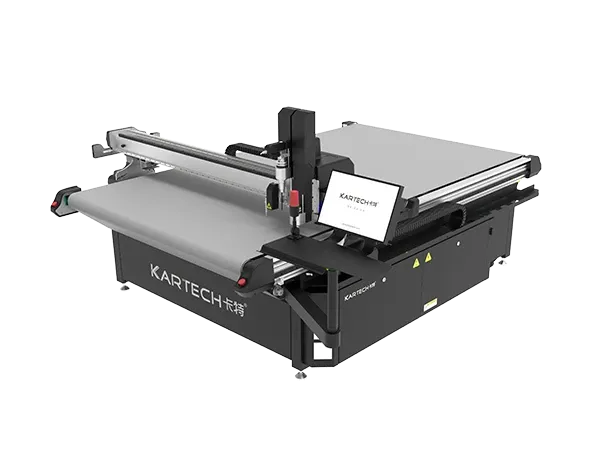
(Z-Axis Stuck, Not Dropping, or Dropping Too Slowly)**
Possible Causes
Insufficient air pressure or high moisture content in air supply
Dryness or dust accumulation on Z-axis guide rails
Solenoid valve sticking
Abnormal servo drive adjustment parameters
Contaminated height sensor
Troubleshooting Steps
Check if air supply pressure gauge meets specifications
Z-axis irregularities are more noticeable when cutting thin materials like leather or fabric.
Clean the guide rails and replenish lubrication
Particular attention is needed in dusty workshops.
Inspect the solenoid valve and its coil connections
Reset servo parameters to factory defaults
Wipe the height sensor to prevent reading deviations
Recommendation:
Air supply stability is crucial for smooth tool head operation. Installing a three-in-one air filter/moisture separator/oil separator is advised.
(When the Blade Cuts Too Deep, Not Deep Enough, or Leaves Uncut Edges)
Cause Analysis
Inappropriate blade pressure paired with cutting speed
Significant batch variations in material thickness
Incorrect blade model selection
Localized unevenness on the cutting bed
Excessively high single-pass cutting speed
Resolution Path
Re-measure material thickness and adjust blade pressure
Verify blade type (vibration blade, drag blade, V-blade, bevel blade, etc.)
Reduce cutting speed
Inspect platform levelness; calibrate if necessary
Conduct a “secondary cutting test”
If the second cut still fails to achieve complete separation, the depth setting remains insufficient.
Troubleshooting Causes
Poor contact in USB communication cable or network cable
Aged control card or loose ports
PC configuration too low causing program lag
Incompatible driver versions
Memory overflow during large file processing
Corresponding Measures
Replace communication cable and secure ports
Upgrade firmware and software versions
Avoid running high-resource programs like rendering software simultaneously
Verify no conflicts in COM port or IP configuration
Close background programs and free system memory
Recommendation:
Minimize unnecessary software installations on production workshop computers. Maintaining a clean environment significantly enhances stability.
Routine Maintenance Checklist
(High Frequency + Low Cost = Longer Equipment Life)
Daily Maintenance
Clear debris from work surface
Inspect suction ports and clear obstructions promptly
Ensure dry, stable air supply
Weekly Maintenance
Check belt tension
Lubricate guide rails
Perform precision calibration tests
Monthly Maintenance
Replace vacuum filter cotton
Tighten electrical connections
Quarterly Maintenance
Complete mechanical inspection
Firmware upgrade
Assess wear on critical components
Machines aren't afraid of use, but they fear neglect. Proper maintenance significantly enhances machine stability and cutting quality.
Flatbed digital cutting machines are inherently complex devices. However, most operational issues—whether misalignment, insufficient suction, blade malfunctions, or inconsistent cut depths—can be swiftly identified and resolved through systematic inspection. By mastering these fundamental troubleshooting principles, workshop teams can drastically reduce downtime while keeping equipment operating at peak performance.
Mass delivery and installation of KARTECH digital cutter XT-1625
2026-06-22FAYON & KARTECH Debut Full New Product Lineup at FESPA Global Print Expo 2026, Barcelona
2026-05-19Flatbed Digital Cutting Machine Troubleshooting Guide
2026-01-17Flatbed Digital Cutting Machine Operation Tutorial: A Practical Guide for First-Time Users
2026-01-17Address: Dingshang Street 21-6 Jindai Industrial Park, Guancheng District, Zhengzhou City
Email: info@fayontech.com
Phone: 0086 13213218088
0086 13213218088
Dingshang Street 21-6 Jindai Industrial Park, Guancheng District, Zhengzhou City